Learning how to find someone by photo starts with one question: what do you want the search to find? Another copy of the same picture, other photos of the same face, and a page that tells you who the person is are three different jobs. Free reverse image search covers the first. A face search covers the second. The third comes from reading the pages those searches lead to, because no search tool hands you a confirmed identity.
This guide covers the free searches on a computer and on a phone, then follows a recorded Face Lookup search from upload to result cards, using an AI-generated portrait.
How to find someone by photo: pick the right search
If you already know where the image came from, open that page first. A caption, a photographer credit or a tagged account can answer your question before you upload anything. When all you have is the image, match the search to the question:
| Your question | Start with | Then check |
|---|---|---|
| Where else has this exact picture appeared? | Google Lens or TinEye (free) | Whether the page uses the same image, and what its caption, date and credit say |
| Are there other photos of this face? | A face search | Whether the photos really show the same person, not just someone who looks alike |
| Does this page belong to the person I'm looking for? | The source page and details you already know | Names, dates and links that agree; a matching photo alone isn't enough |
| Is an online contact misleading me? | Their story, a live call and a photo check | Whether the story holds over time, and any request for money |
Method 1: Google Lens (free)
On a computer
Google's image-search help page describes these steps:
Go to google.com and click Search by image, the camera icon in the search box.
Click Upload a file, select your photo, then click Open or Choose. You can also drag the image into the search box, or paste a direct image address into Paste image link.
Review the results. According to Google, they can include similar images and websites that carry the same or a similar picture. The layout varies by device and region.
Open a promising page and read its caption, date and credit. If the same picture appears under different names, save the links so you can compare them later.
If the image is on a website you already have open in Chrome, right-click it and choose Search with Google Lens. The results open in a sidebar.
On a phone
On Android, open the Google app or Chrome, tap the Google Lens icon in the search bar and pick the photo from your gallery. On an iPhone, the Google app and Chrome have the same Lens icon. Drag the corners of the selection box around the part of the picture you care about, such as one face, then scroll through the results at the bottom of the screen.
For a picture on a website, touch and hold it and choose the Google Lens search option instead of saving it first. The wording differs slightly between the Google app and Chrome, and in Chrome it needs Google set as your default search engine.
Method 2: TinEye for exact copies (free)
TinEye is a reverse image search engine that is free for non-commercial use. It looks for copies of the picture you give it, including versions that have been cropped, resized or edited. Its help center is direct about the limit: TinEye "does not recognize faces in the photos," so it won't find a different photo of the same person.
That makes TinEye a good check for one specific job: tracing where a particular image has been posted. Because Google and TinEye search different image collections, it's worth running both before you conclude that a picture appears nowhere else.
Method 3: Face search, from upload to results
A face search compares the face rather than the whole picture. It can return different photos of a face, with a new background, another crop or from another year. It can also return people who simply look alike. The recording below shows a search in Face Lookup. The input photo is an AI-generated portrait of a fictional woman, so there is no real person behind it to find.
A 38-second search: choosing the photo, cropping the face and reviewing the result cards. No sound; English captions describe each step.
This search returned 200 matches, and the top cards scored 85 out of 100. That number measures visual similarity. It is not an 85% chance that the card shows the same person, and with a fictional input, a high score here can only mean resemblance.
Step 1: prepare a useful photo
Use a photo you own or have permission to search. Keep the original file if you can: an avatar saved from a screenshot has already lost detail, and enlarging it won't bring that detail back.

The search photo: an AI-generated portrait, not a real person.
Choose one clearly visible face. Leave some space around the forehead and chin, and don't cut through the head. In the recording, the preview warns that the face is small, so the crop is tightened around the head before the search starts. The face check and the cropping run in your browser.
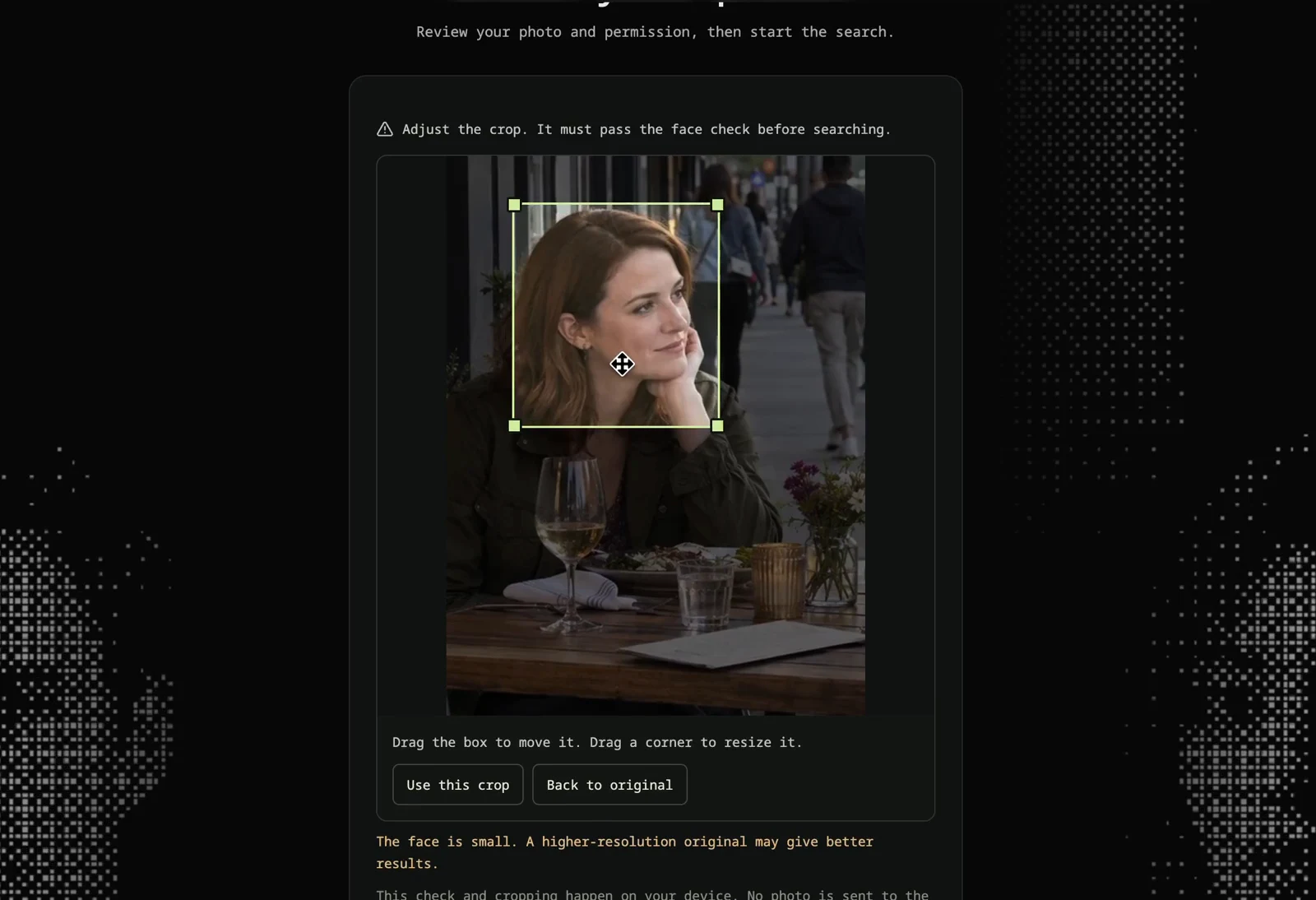
Cropping the photo down to one face before searching.
Face Lookup accepts one JPG, PNG or WebP file up to 5 MB. Filters, heavy compression, sunglasses or a strong side angle make a face harder to compare, though none of them tells you whether a person or an account is genuine.
Step 2: upload, check the preview and start
Choosing a file only opens the preview. Nothing has been searched or charged at that point. Check that you picked the right image, adjust the crop if needed and read the permission statement before you start.
A search needs a Face Lookup account and costs 3 credits, including a search that ends with no matches. The photo you submit is stored privately for 30 days. If you need credits, the one-time packs and the monthly plan are on the pricing page.
Let the search finish before deciding whether a different photo is worth trying. Search time varies, so the loading time in the recording isn't a promise.
Step 3: read the result cards
Each card shows a thumbnail, a similarity score and the website where the image was found. Read the three together. A high score makes a card worth opening, but it doesn't make the person pictured the one you're looking for. Hair, pose and expression can look convincing at thumbnail size, especially when you're hoping for a particular answer.
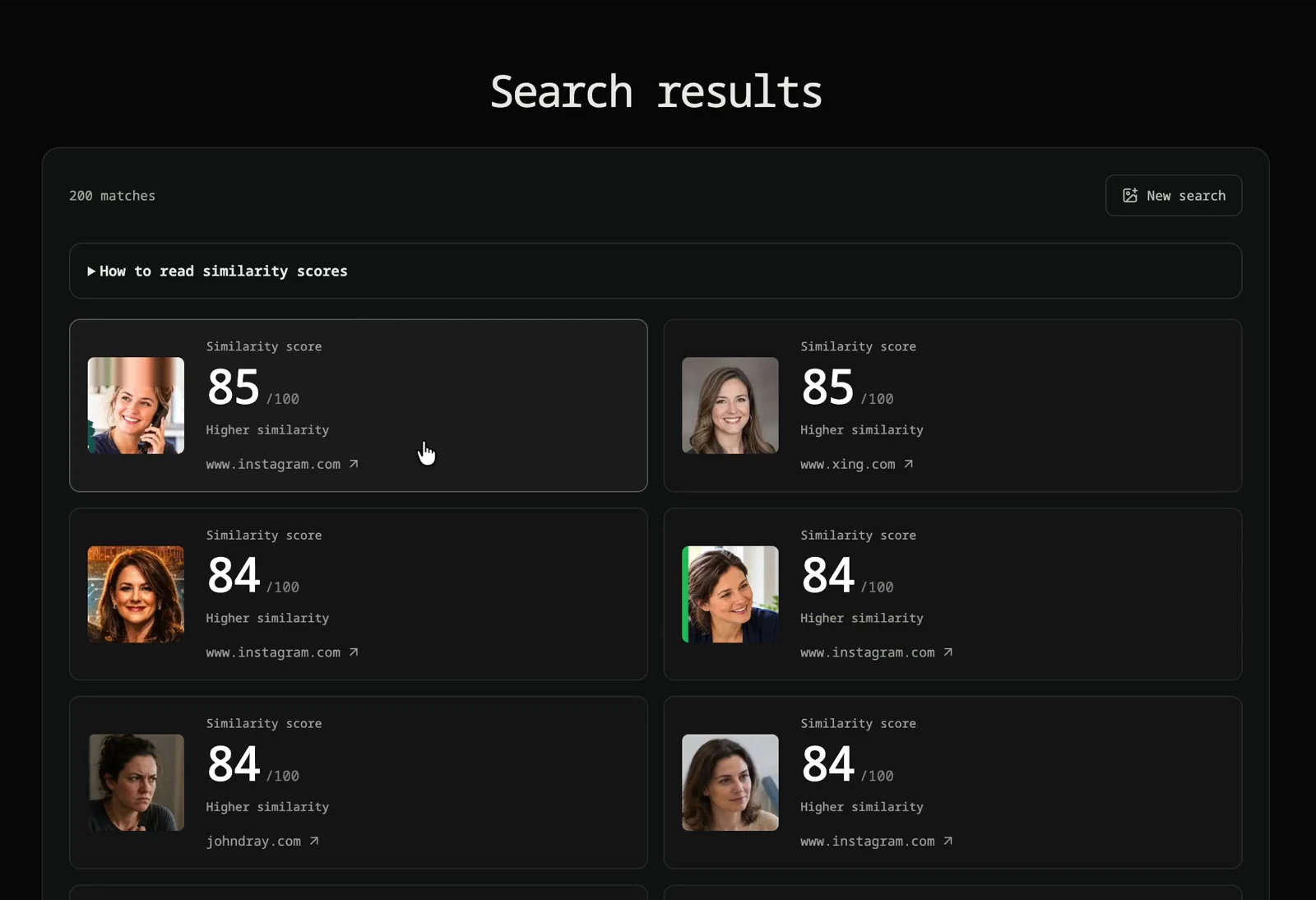
The first result cards from the recorded search.
Compare details that are hard to change, such as the hairline, the shape of the ears, scars or moles, across several photos. Keep a doubtful match as an open lead while you check its source.
The website name tells you where a link goes, not who controls the account. A photo may have been posted by someone other than the person in it, and an old page may no longer describe them.
Step 4: open the source page and check the context
A result card is where the checking begins. On the source page, look for the image itself, its date, the text around it and any credit. Is it a personal profile, an article about someone, a portfolio or a repost? Does the name on the page agree with what you already know from another, independent source?
Some pages show only a public preview and ask you to sign in for more. Others may have changed or removed the image since it was found. Treat anything you can't open as unverified: a link in the results doesn't give access to a private account, and it doesn't prove the page is still current.
If two pages use the same photo, you know the image has been reused. Whether that reuse is ordinary, authorized or misleading takes context to work out. Don't contact someone just because a result looks plausible, and don't post an accusation next to a returned photo.
What if nothing useful comes back?
No match doesn't prove that a photo is AI-generated, fake or safe. The image may be new, missing from the index, too small to compare, or posted somewhere a search can't reach. Photo quality and search coverage have nothing to do with whether someone's story is true.
AI-generated images can still return lookalikes, as the recording shows. If a generated image has been published online, a reverse image search may also find that published copy, which is useful when a dating profile seems to be using one.
Before you spend more credits, ask what a second search would change. A clearer original may be worth trying. Uploading the same low-detail picture again won't confirm anything.
Decide what to check next
For a dating-profile photo, the FTC suggests a reverse image search as one way to spot a name or details that don't match. Its romance-scam advice also covers the conversation itself and requests for money. If that's your situation, our guide to spotting a catfish covers the checks beyond the photo, and the Catfish Search page explains how a face search fits in. A search alone can't tell you whether someone is a scammer.
So, how to find someone by photo without fooling yourself? Use the simplest search that can answer your question: Google Lens or TinEye for the picture, a face search for the face, and the source page for the name. You may end up with a solid lead, an unresolved resemblance or nothing at all, and any of those is more honest than treating a similarity score as a confirmed identity.
FAQ
Can I find someone by photo for free?
Partly. Google Lens and TinEye cost nothing (TinEye is free for non-commercial use) and show where the same or a similar picture appears online. TinEye says it doesn't recognize faces, and Google Lens returns visually similar images that may or may not show the same person. To look for other photos of the same face, you'd use a face search, which costs 3 credits per search on Face Lookup.
Will a face search tell me the person's name?
No. It returns photos, similarity scores and links to the pages where those photos appear. A name only comes from a source page, and it's worth checking against details you already know before you rely on it.
Why did my search find nothing?
The photo may never have been posted publicly, may only exist on private accounts, or may be too small or blurry to compare. Try the original file if you have it, crop to one face and run a free reverse image search as well. An empty result says nothing about whether the person is who they claim to be.
What happens to the photo I upload to Face Lookup?
Your uploaded photo is stored privately for 30 days. Search results remain available in your account for the same period. Privacy Policy.
Try Face Lookup with your own photo
Sources: Google: Search with an image · TinEye: Can TinEye find this person for me? · TinEye: Is TinEye free to use? · FTC: What to know about romance scams. Face Lookup publishes this guide about its own product. The recording is one search with a synthetic portrait, not a benchmark or a comparison with other services.